Writing Workbench
It’s 1 a.m. and inspiration strikes. You open TouGaoYa, create a new article, and the rest is just you and your writing.
The writing workbench is the heart of TouGaoYa — simple enough to stay out of your way, powerful enough to handle formatting, images and publishing in one place.
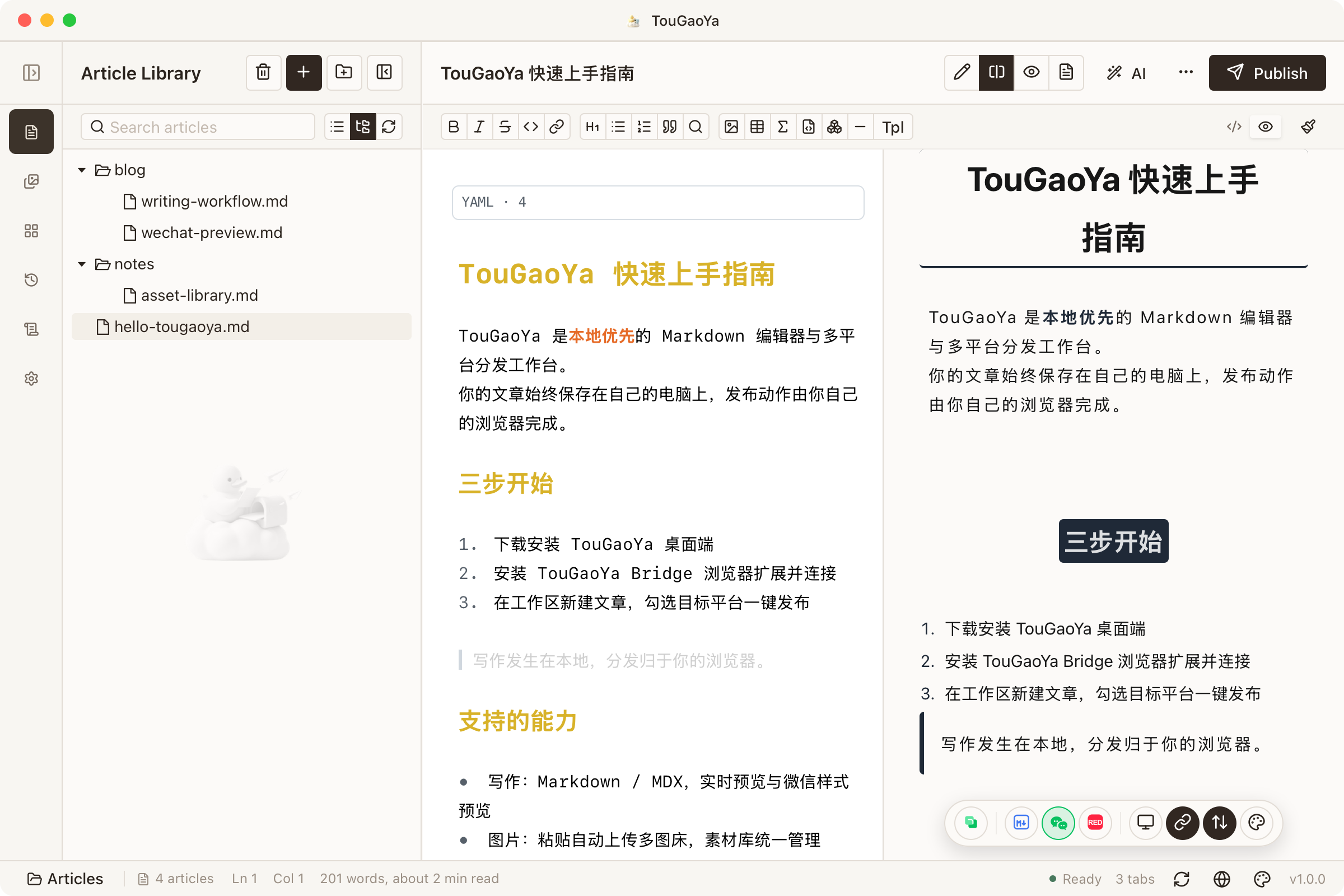
Workspace: Where Your Articles Live
On first launch, choose a local folder as your workspace. From then on:
- Each article is a Markdown / MDX file stored on your computer
- Your article library is shown as a directory tree, with folders, subdirectories and empty folders all visible
- Writing is local-first; your data never leaves your device, and articles open in any editor
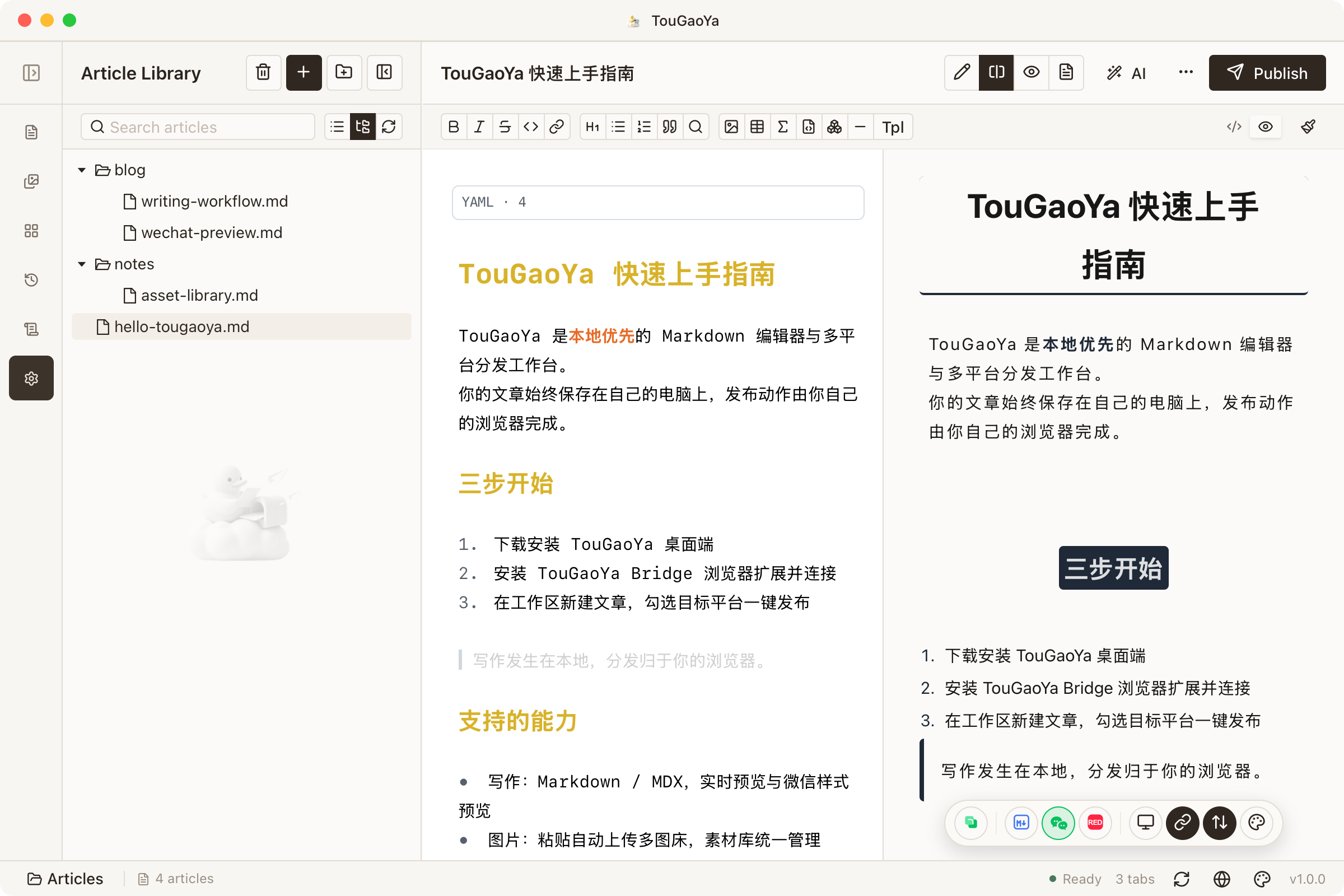
Start Writing
Select or create an article in the library and start writing:
- Write in the editor on the left, preview on the right
- Three view modes: Edit, Split, Preview
- The toolbar provides formatting actions and quick inserts
TouGaoYa supports the full Markdown syntax — headings, lists, tables, code blocks, blockquotes and more. Advanced syntax works out of the box:
- Math: inline and block formulas
- Diagrams: Mermaid, PlantUML and infographics
- Ruby annotation: add readings to characters
- Callouts: highlight key content, plus academic environments like theorems and definitions
- Slideshow: horizontal swipe images, friendly to WeChat
- MDX: embed component expressions directly in articles
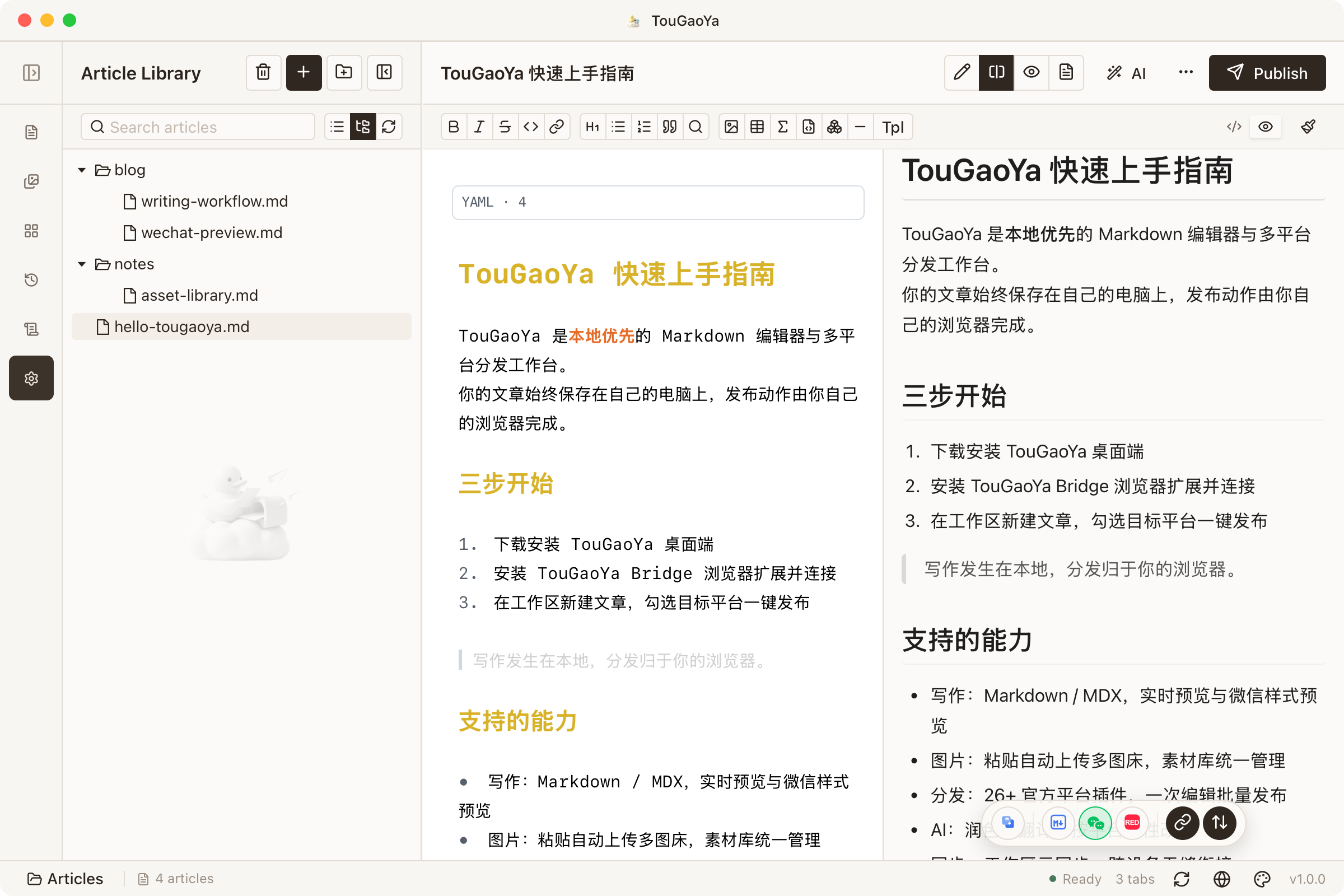
WeChat Preview: One-Time Formatting
When writing for WeChat, switch to WeChat Preview:
- One-click copy as WeChat-compatible formatting
- Styles persist after pasting into the WeChat editor
- External links can be converted to footer citations to avoid WeChat filtering
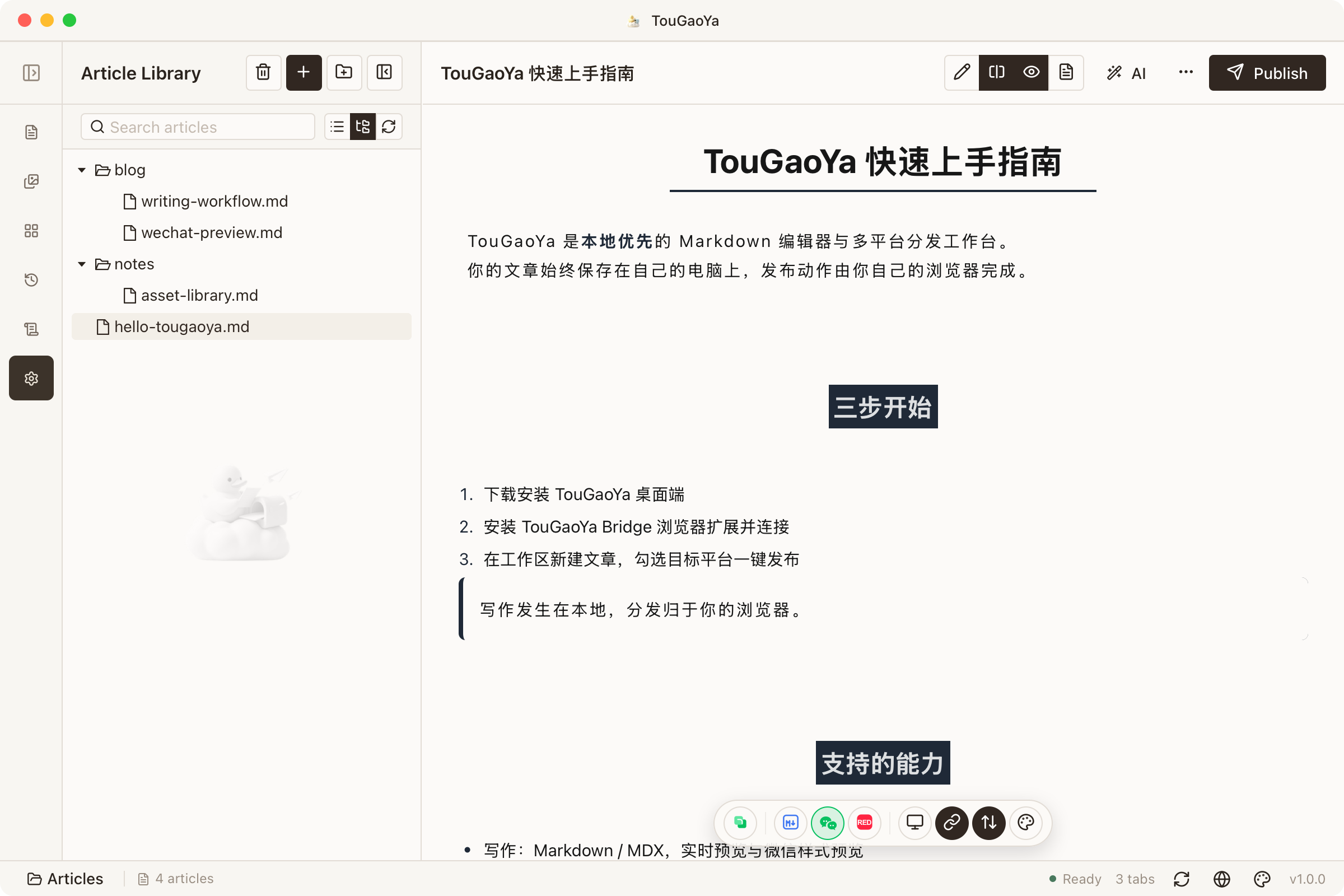
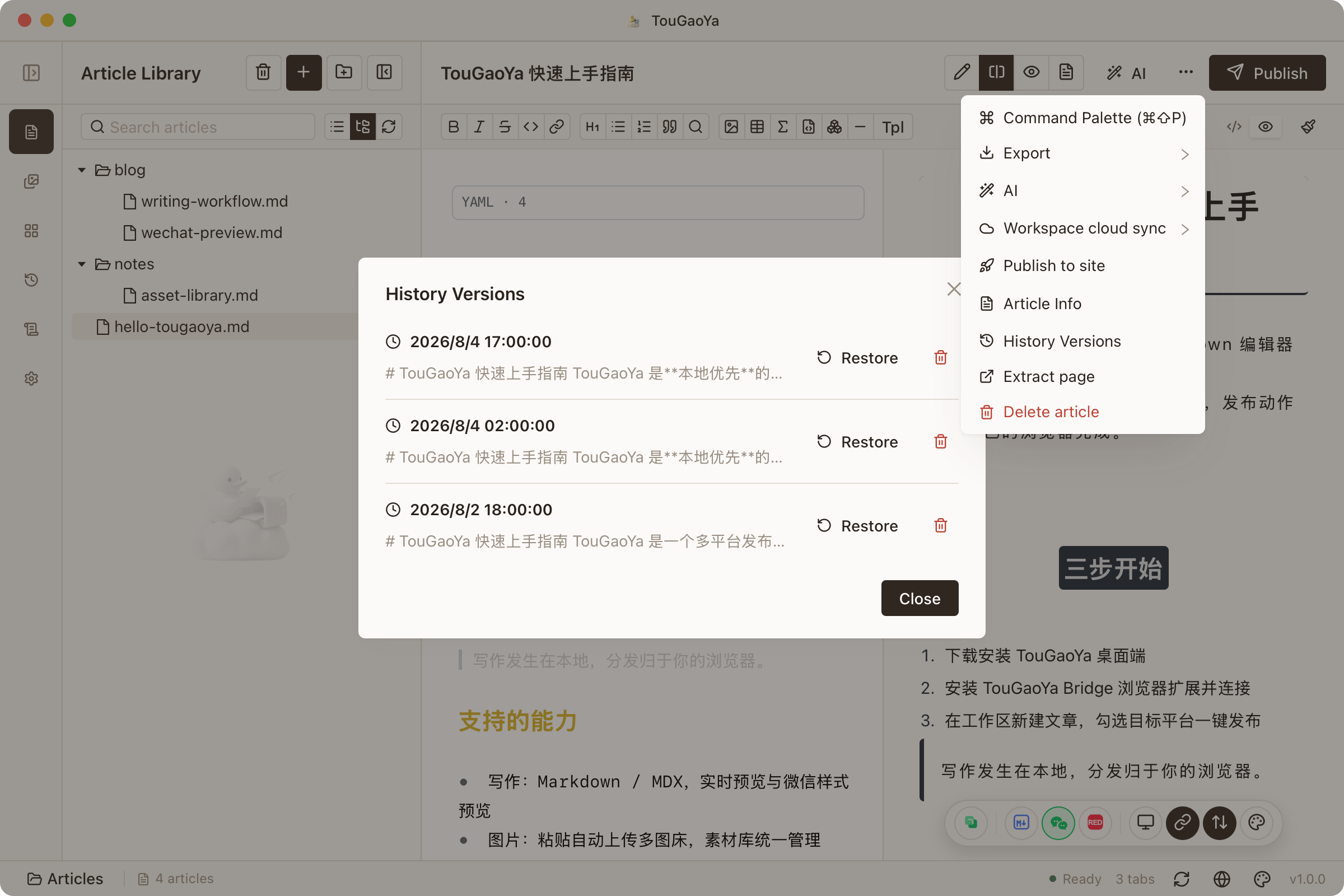
Version History: Never Lose an Idea
TouGaoYa keeps a version history for every article:
- Every change is recorded automatically
- Review and compare any past version at any time
- Restore a version with one click
Accidentally deleted a paragraph? Want the ending from three hours ago? It’s all there.
Article Info
In “More → Article Info”, edit your article’s metadata:
- Summary and description
- Cover image
- Site publish targets and draft status
These are used automatically when you publish to platforms or your website.
Next step: after writing, try Publishing or configure Images & Image Beds to upload images automatically.