Publishing
Writing an article takes an hour; publishing to five platforms takes five minutes. Not magic — just TouGaoYa.
You write in one place, select target platforms, click sync, and the rest is handled: each platform’s format quirks and layout details are taken care of by platform adapters.
Prerequisite: Connect the Browser Extension
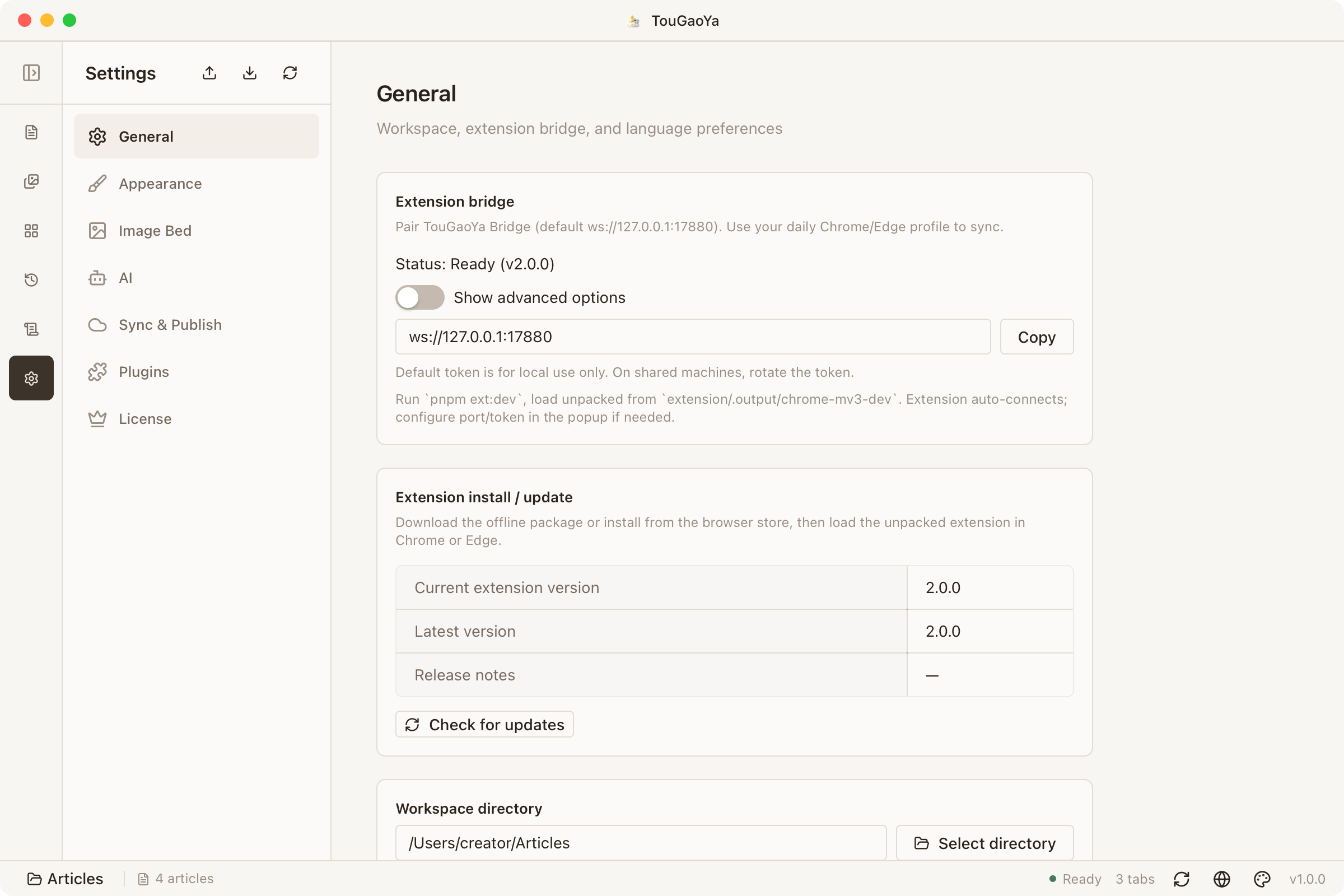
TouGaoYa uses the official TouGaoYa Bridge browser extension for platform login and publishing:
- Install the TouGaoYa Bridge extension in Chrome from the Chrome Web Store ; Edge users install the offline package from the website
- Open TouGaoYa and confirm the extension is connected in Settings → General
- When the status shows “Connected · Ready”, you’re ready to publish
Why the extension? Because publishing is done by your own browser. You never hand your platform credentials to any third party — login state and session tokens stay inside your browser.
Install Platform Plugins
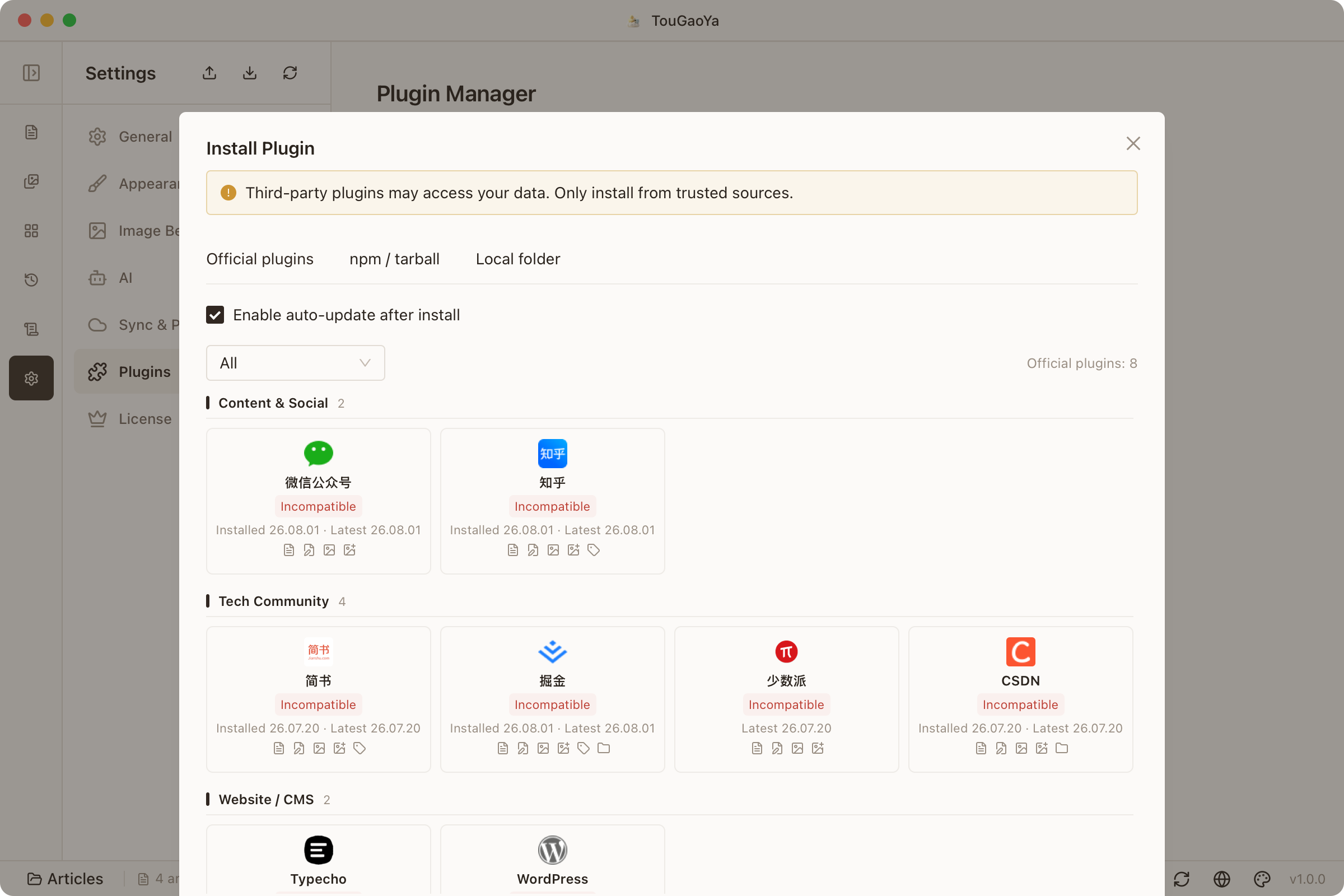
TouGaoYa supports 26+ platforms, delivered as plugins:
- Install official plugins with one click in the “Platforms” panel
- Manage installs, updates and uninstalls in Settings → Plugins
- Both official and third-party plugins are supported — see Platform Plugins
One-Click Distribution
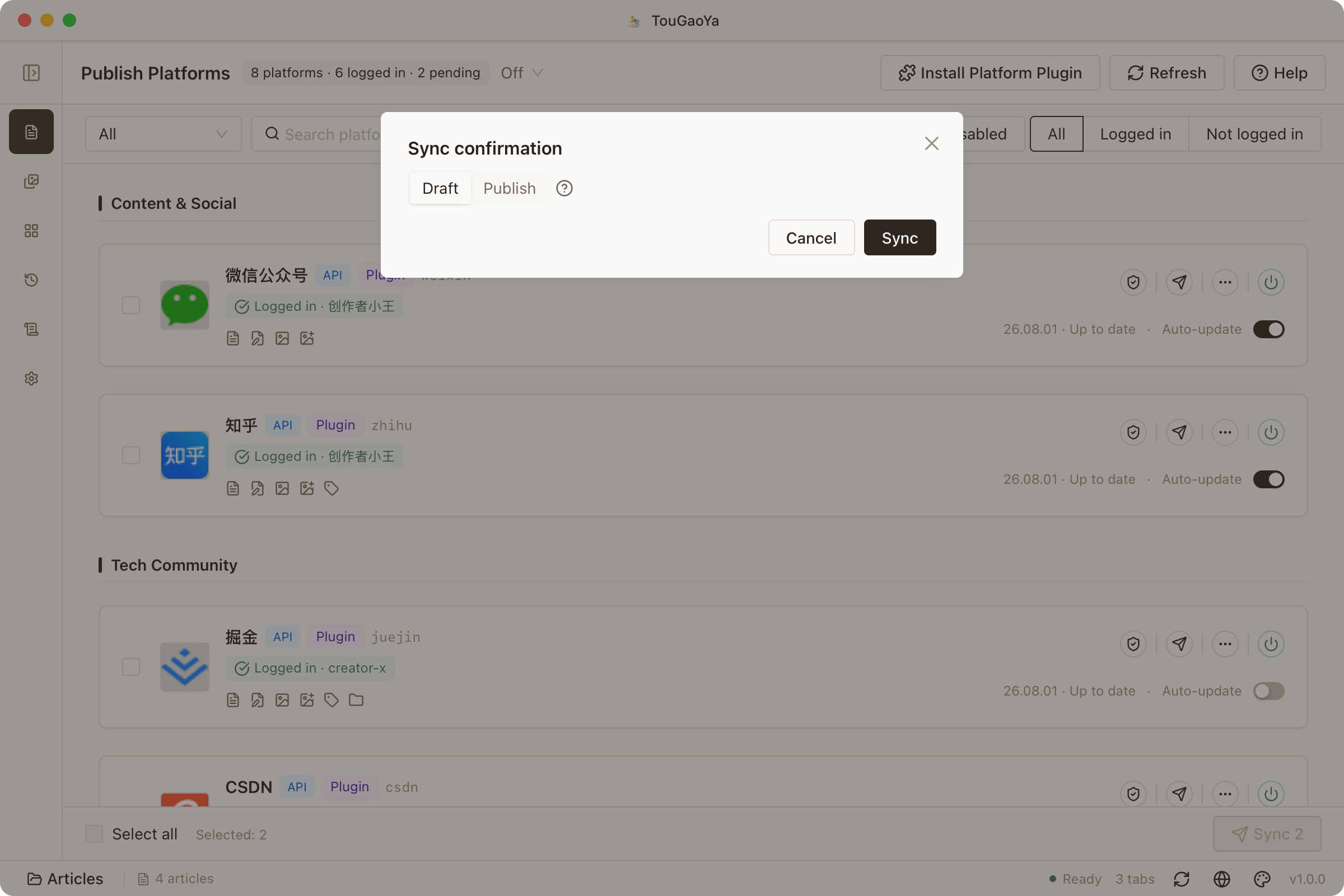
- Log in to your target platforms in the browser (sessions stay in your browser)
- Select target platforms in the Platforms panel
- Click the toolbar “Sync” button; choose Publish or Draft mode
- Track progress and results per platform in the History panel
Retry failures, watch live progress, and keep a full sync history with audit logs.
Page Automation Publishing
Some sites (e.g. Jianshu) publish via page automation: TouGaoYa opens the platform’s editor page, fills in the content and submits it.
- Runs in the background by default, without interrupting you
- For debugging, enable “show tabs in foreground” in settings to watch every step
- When a manual step is needed (like login), it pauses and waits for you
FAQ
Why can’t I select certain platforms?
The platforms panel pre-warns you when the extension doesn’t support a capability. If the extension version is too old, try refreshing or updating it.
What if publishing fails?
- Confirm the extension shows “Connected · Ready”
- Confirm you’re logged into the target platform in the browser
- Check the specific error in the History panel
- If a platform page changed, update its plugin
More troubleshooting in the FAQ.
Advanced: let the AI adapt your content per platform before publishing, and review the diff before confirming.