Asset Library
The images you use while writing — screenshots, diagrams, covers, emoji — scattered across Desktop and Downloads, hard to find when you need them.
TouGaoYa’s asset library gives your images a home: images pasted or dragged into the editor are imported automatically, and ready to insert anytime.
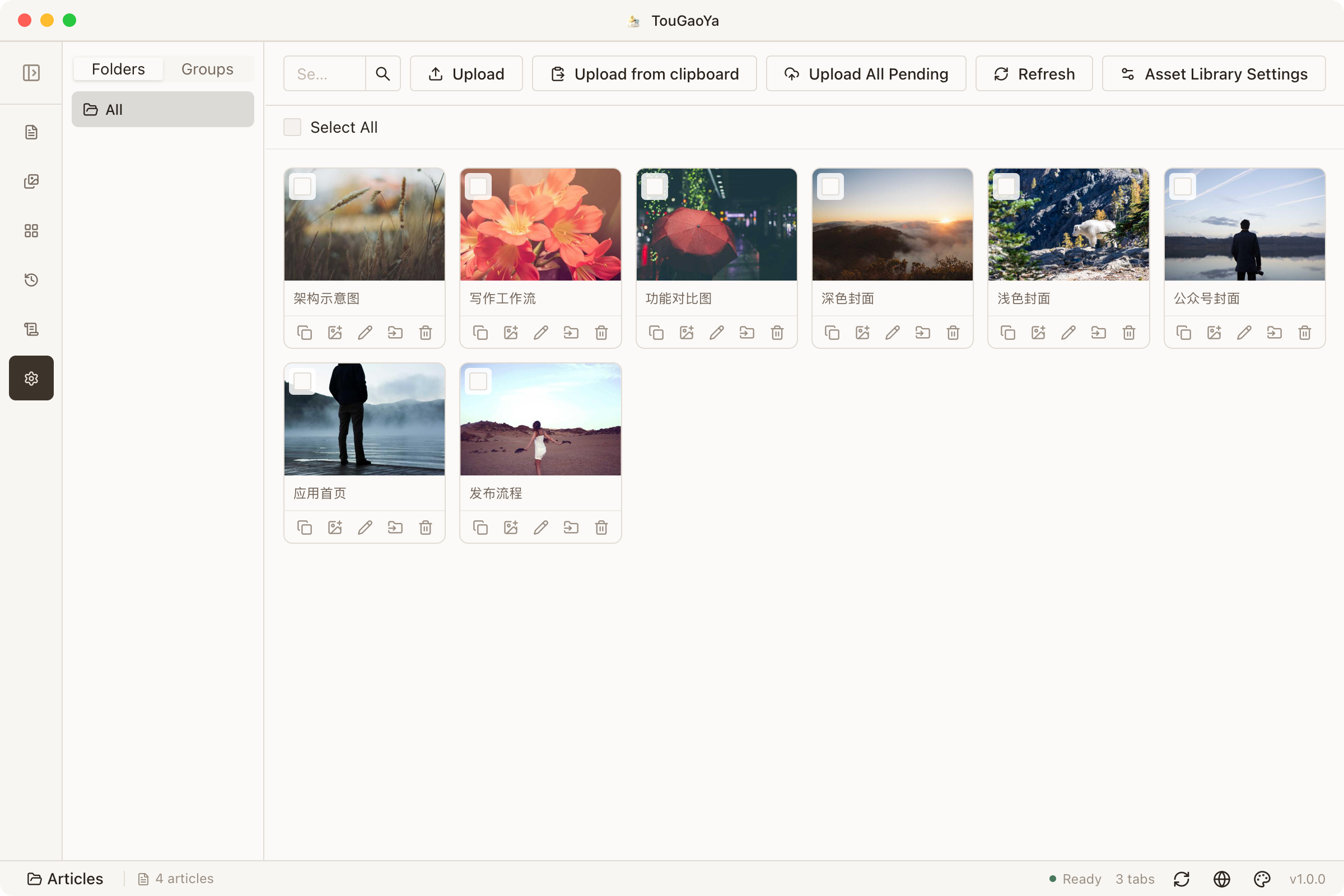
Automatic Import
- Images pasted or dragged into the editor are added to the asset library automatically
- They’re uploaded to the image bed on import (when configured); otherwise stored locally, ready for later upload
- Insert images from the library via the toolbar or the
/command
Groups and Search
- Organize assets in a directory tree on the left, with custom groups
- Search by name to find images quickly
- Keep frequently used images in a fixed group, within reach while writing
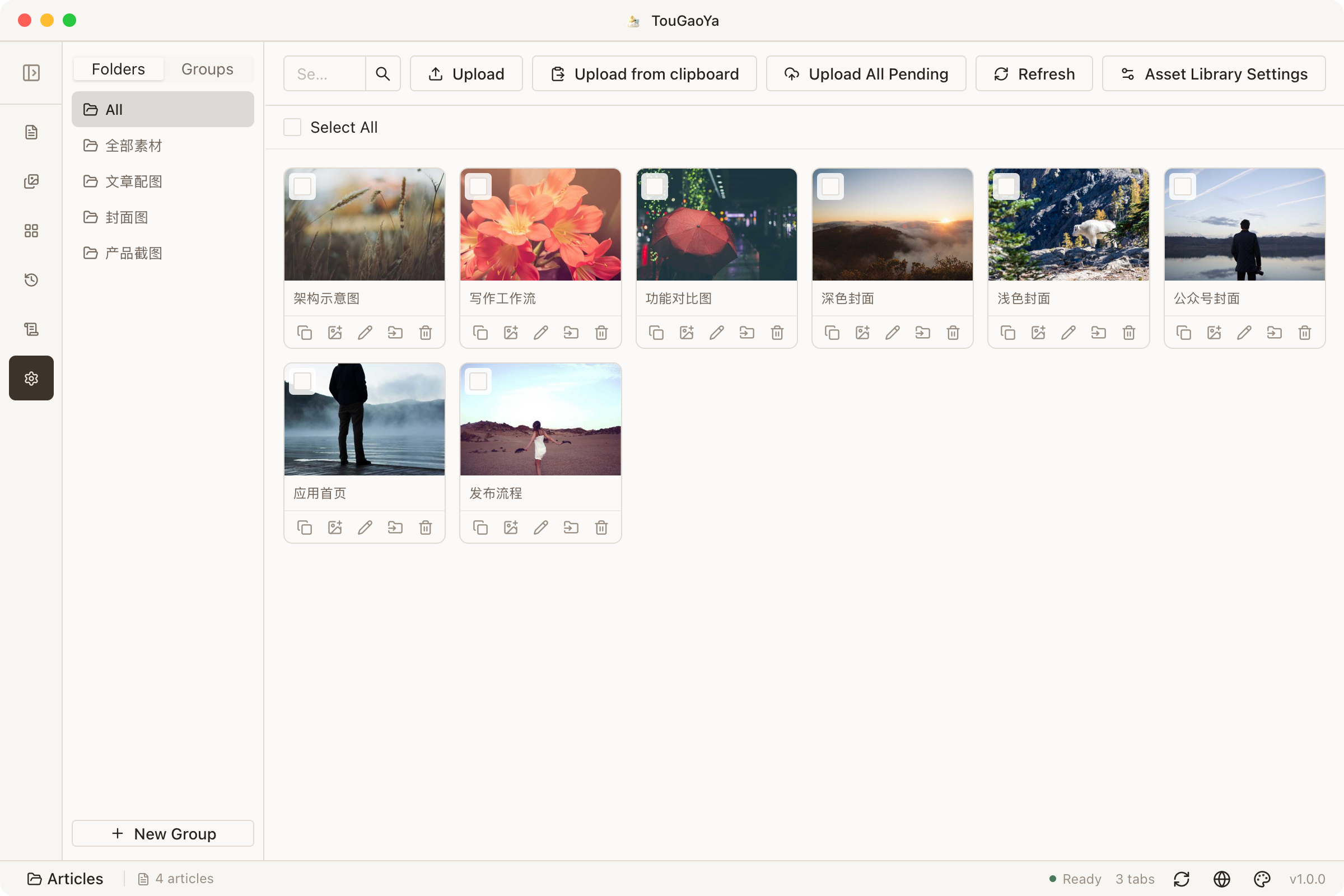
Image Bed Upload and Re-Compression
- Assets use the image bed for stable links without eating local space
- Batch re-compression: compress oversized assets in bulk; they’re automatically marked for re-upload
- Deleting an asset also deletes the remote object on the image bed by default (configurable)
What Happens When You Switch Devices?
The image files live in your local workspace, but the asset library index (mapping of images to image bed links, plus groups) syncs with your workspace:
- On a new computer, open the same workspace and sync — the library rebuilds automatically
- Local images that already exist are matched to their original image bed mappings by content, no re-upload needed
- Images not yet downloaded can be previewed via their links and used in publishing; download to disk with one click when needed
Combined with Sync & Switching Devices, the asset library follows your workspace — switching devices isn’t starting from scratch.
FAQ
Images too large to upload?
The library has a per-image size cap (default 50MB). Oversized assets are flagged rather than silently failing — compress and retry.
Want to continue on another computer?
Asset index syncs with cloud sync — see Sync & Switching Devices.