Sync & Switching Devices
Write on your desktop at the office, refine on your laptop at home — the daily reality of many creators. But every device switch used to mean copying files around and reconfiguring image beds, AI and publishing platforms.
TouGaoYa’s workspace cloud sync makes it feel like you just swapped monitors. One workspace, one provider:
- GitHub: your repo + PAT (site publish still uses this)
- TouGaoYa Cloud: sign in with email, sync Markdown; images stay on your image bed
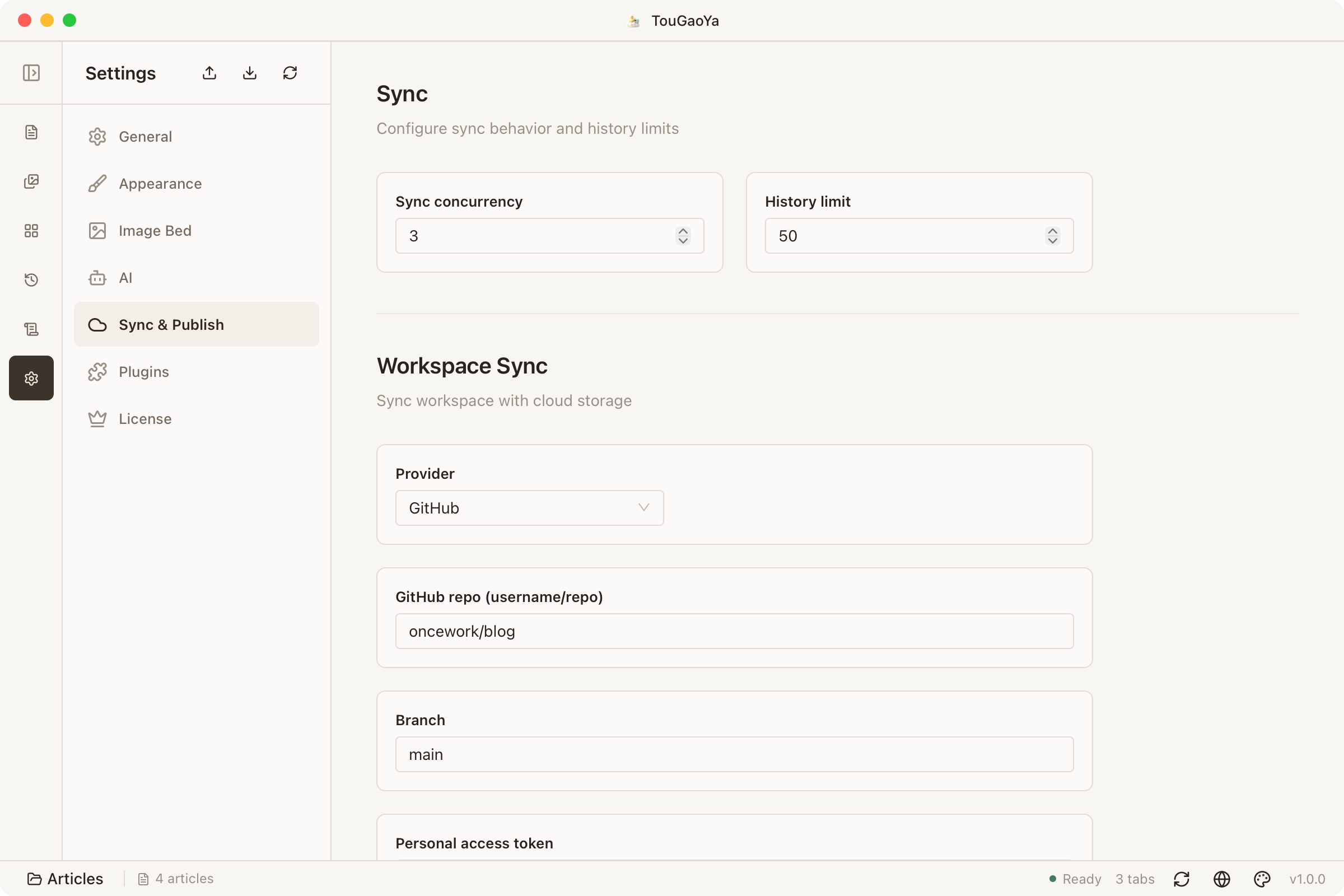
Bind a GitHub Repository
- In Settings → Workspace Sync, fill in your GitHub repository, branch and access token
- Click “Bind” to link the workspace to the repo
- Use the Cloud menu in the editor toolbar for “Sync now / Push / Pull / Status”
TouGaoYa Cloud (no GitHub PAT)
- Open Settings → License or Settings → Workspace Sync, then the TouGaoYa Cloud card
- After sign-in, set the sync provider to TouGaoYa Cloud
- Sign-in triggers a sync immediately; later use Sync now or wait for auto-sync (~15 min)
Trial quota is small (~2MiB / 30 files) — enough to open the same article on another machine. After expiry, local files stay; the cloud copy is read-only.
Everyday Usage
- Auto sync: once enabled, changes sync in the background automatically
- Sync now: trigger a manual sync whenever you want
- Status: review local and remote differences at any time
What Gets Synced
More than just articles:
| Content | Description |
|---|---|
| Articles | All Markdown / MDX files |
| Workspace config | Image bed, AI, site targets, publishing settings (protected by encryption) |
| Asset index | Mapping of images to image bed links, plus groups |
Image binaries don’t enter the repo (size concerns), but their links do — so images still preview and publish normally after switching devices.
Switching to a New Computer
- Install TouGaoYa on the new machine and open the same workspace folder (git clone or open directly)
- If config follow is enabled, enter the passphrase you set to unlock all settings
- Click “Sync now” to pull articles and the asset index
- Image bed, AI and publishing settings are ready — just keep writing
Conflicts and Safety
- When multiple devices edit the same article, TouGaoYa attempts a three-way merge
- If the merge isn’t clean, a conflict copy is created and auto-sync pauses until you resolve it
- GitHub sync only talks to your repo; TouGaoYa Cloud is an optional plaintext replica you can turn off
FAQ
Will cloud sync overwrite my local files?
Push uploads local changes; Pull merges remote changes. We recommend checking “Status” before pulling to review differences.
Forgot the config passphrase?
You can reset it (the config area will be cleared for reconfiguration), or disable config follow.
Related: Asset Library — how the asset index syncs with your workspace.